Showing posts with label Windows 7. Show all posts

Microsoft | Windows 8 will arrive in Q1 2012

Microsoft may have plans to launch the desktop version Windows 8sometime in 2012, but a variant of the operating system, Embedded Windows 8, Is also in development. Reports Computerworld.com have revealed that Microsoft plans to show a version of Windows 8 Embedded to developers sometime in the first quarter of 2012.

Microsoft Windows 8 will arrive in Q1 2012

This version of the operating system is doing, not for desktop PCs or laptops, but for specialized electronic devices such as kiosks, and other medical products. Like the normal version of Windows 8, Windows 8 Embedded will run on x86 and ARM processors. The final version is expected to launch shortly after the release of the standard version Windows 8 OS.

Although the operating system details have not yet been announced, Microsoft has indicated that Embedded Windows 8support different types of user interfaces. That means it is likely that supported features like touchscreens (Rather than the standard edition of Windows 8 will) with the voice recognition.

Read more...

Windows 7 64-bit : advantages and disadvantages

64-bit architectures were created long ago for professional environments where performance and the need to increase hardware resources is essential to handle large flows of work and heavy duty applications.

The entrance to the domestic sector in this type of application (video editing, 3D modeling, database management to web servers, etc.) Has made almost half of users Windows 7, Has opted to install the 64 bits.


Advantages of installing Windows 7 64 bit

Basically and simplifying, Windows 7 64 bit install provides a higher performance data processing per clock cycle, better forwarding memory, ability to perform numeric calculations faster and the potential Hardware scalability Because as you know, the 32-bit Windows 7 only recognizes 3 GB of RAM maximum, Which in the 64-bit increases significantly.

Another advantage of installing Windows 7 64 bit software is compatible with 32-bit architecture, so many of the disadvantages of migrating to 64 bits are compensated.
On a practical level, install 64-bit version of Windows 7 will provide a better management of memory heavy applications and programs as video editors, 3D modelers, or any other program that requires a level of high hardware requirement.

As we have seen the benefits of installing Windows 7 64 bits are interesting, but not all that simple. Before deciding to migrate to 64-bit version of Windows 7 must take into account a number of very important things as the availability of compatible programs or what is even more important: your computer (processor, graphics card, sound card, network card, etc..) is prepared for this architecture and there are drivers or drivers to work on it.

Applications and programs: Not all programs and applications leverage the benefits of 64-bit architecture, that is, even operating system has a very powerful and effective, the software we use must be optimized to take advantage of these values, so otherwise get no improvement in these aspects.

To ensure that a particular program is a version compatible with Windows 64 bits, you can find on the official website or use the online tool Support Center in Windows 7.
Hardware Compatibility: More important than the software compatible with Windows 7 64 bits, hardware compatibility and availability of drivers or drivers for this. The first thing to check is that our processor is ready to work on 64 bit architectures. A good tool to know this point is the System menu of the Windows Control Panel. Note that 64 is present the processor specifications.

Hardware Drivers: As we prove that the components of our team are ready to run on Windows 7 64 bit, we need to update the drivers or drivers to adapt their understanding of the new operating system version.
To do this, you can visit the manufacturer's website and look for the package or 64-bit drivers also use the Windows Support Center 7. Remember that any time we make a choice of 64-bit Windows 7.

Conclusions
64-bit versions are, as we said at the beginning, ready to withstand heavy workloads and run faster than 32-bit versions. If your hobby your work requires more RAM or higher performance processes, install Windows 7 64 bit is a good idea. If instead you do not need much power, I recommend not to migrate for any problems or inconveniences that we have listed in this report,

Read more...

The best utilities for Windows 7

After failure undisputed Windows Vista (Since it surpasses XP in both stability and overall performance) Microsoft had to surprise with its new operating system. Windows 7 really did it, today we have some free utilities for this OS.

Windows 7 was able to attract new users and bring back customers who had left the system after the release of Vista.

Today we offer a list of ten free utilities for Windows 7

1. Windows 7 Utilities 4.0 - This utility helps streamline and provide higher performance and speed to our operating system.

In turn, includes a system of maintenance and useful applications for our hard disk.

2. BackUp Maker - As the name says is for backup.

3. FlashGet - This application is very useful because it allows us to manage our downloads including the popular BitTorrent.

4. Google Desktop - The famous most famous search engine tool for our Windows 7.

5. SIW - This software provides all the information on our system, but in a format easy for the average user.

6. BurnAware Free - Known program for recording CDs and DVDs.

Widgets for Windows 7

Windows Installer Themes - Free utility that lets you install or remove tracks for your operating system.

Windows 7 Start Button Changer - Application that allows us to modify the start button in turn can be used in previous versions of Microsoft OS.

7plus - An interesting program that allows us to get more speed in our daily work, we can paste text or content to the clipboard automatically.

WeatherBar - This widget shows the time in a specific place, the interesting thing is that it can integrate seamlessly with the narrative task.

Read more...

The Service Pack 1 of Windows 7 about to be launched

The launch of Service Pack for Windows 7 could be just around the corner, since they could be released today. Since a few weeks ago was expected to announce this patch Microsoft operating system arrives in the coming weeks but the Microsoft TechNet Blog in Russian say that the launch will occur today, although in the post puts it this morning but was released yesterday.

However, according to Win Rumors comments Blog the message Microsoft is not very clear and believe that the discharge of the first service pack for Windows 7 is not available to the public today, but could refer to the availability of the RTM that will be sent to manufacturers for incorporation into OEM installations of the operating system. In either case we will probably now in doubt and as is customary in the case of the RTM as is usual in such cases sooner or later this is leaking.

W7

Several months ago, it is known that Microsoft is working on this first patch the operating system which will have different bug fixes and some improvements, although the user experience I've lived with this operating system the truth is you could say it is one that has fewer bugs had. Which is very subjective and it is my case, perhaps some of you have generated thousands of problems.

Among the new features they are RemoteFX improving the experience in 3D environments remote users, whose goal is to offer a complete experience when accessing a remote computer, with Aero and other graphic animations. Clear that the functioning of all this also depends on the type of connection to the remote machine perform, but in a connection within the same network should work fine.

Just recall that Windows 7 is still the best operating system Microsoft is giving results, and together with the suite of office, Office 2010, have achieved a record of revenue for Microsoft. The operating system has long since surpassed in usage share to Windows Vista and is gradually cutting field with Windows XP.

Read more...

Optimize and increase speed of Windows 7 with Advanced SystemCare

I recently formatted and installed Windows 7 Ultimate 64-bit on my work laptop (and was justice, more than a year ago did not.) And to give you a good start to this new stage of my laptop, I decided to try Advanced SystemCare to see how he goes with the optimization of the system, I get the full benefit of my 4GB of RAM.

Advanced SystemCare is an excellent Free program we have discussed in the blog and I know that many users seem very interesting, I found that applying the title of this software, I get better performance from Windows 7. Once you have installed, inícienlo, click on the "Prevention and Improvement", and then click "Scan."

See what you found in my system after I installed new Windows 7

Interestingly, I have many things to implement in my computer. When I click on the category of 'Optimize System' (specifically in '12 Problems'), observed:

As you can see, I have been told that by modifying some aspects of the appearance of Windows 7 I get a better system performance, also as displayed above may have the status of Windows Services where he tells us what services are unnecessary and also points Windows configuration.

It has also found some problems of fragmentation of files, so advised to perform a defragmentation of the hard drive (the same software that does). And then I've done everything as indicated by Advanced SystemCareI noticed that the speed of the system has increased significantly. I commented that it is compatible with Windows 7, Vista, XP, etc. Both versions 32 and 64 bits. An excellent software for optimization.

Read more...

Windows 7 has 20% of Windows users

Microsoft product that is making a very important success, that is Windows 7, Which has reached no less than the 20.87% of Windows users.

According to statistics from Net Applications, Windows 7 (released on October 22, 2009) has gained 1.18% between November and December 2010, which almost reaches 21%, thanks to more than 240 million copies sold worldwide (according to Microsoft, and taking into account until the month of October).

Sure, Windows 7 is still far from the 56.72% of the market that holds Windows XP but with just one year on the streets their numbers are more than good, and there are many who speculate that Microsoft's operating system may have already reached the 300 million units sold, taking into account projections of previous months and how well it has come the holiday season.

More information: Net Applications

Read more...

Nexus Dock, a dock for interesting Windows Apps

Today we bring you a very interesting one for Windows: Nexus Dock.

The first thing you notice is its design Very elegant and with a number of themes to customize it, and we can tinker with the settings enough to fit on transparency, style, size and effects. We can also add widgets the dock to show us the performance of the system, the weather or even allow us to capture the screen.

In addition, we include the system tray in the Dock, show previews of the applications or drag and drop from the dock itself to any element.

nexus-dock

Nexus Dock is available in Spanish and is free. There is also a paid version that includes, among other sub-docks (docks that appear to pass over a main dock icon) and "shelves", which show the contents of system locations such as My Computer, Control Panel, My documents and any file on the file system.

If you are not happy with the taskbar of your Windows version, Nexus Dock is a very interesting alternative .. Dock Nexus what surprised me most is so advanced settings it offers. The downside is that the Spanish translation is bad, and The default size is too large At least for my taste.

Link

Read more...

Start Menu 7, customize the Start menu of Windows 7

Start Menu 7 is a very practical application that allows us to customize the start of our Windows 7.

For those who are accustomed to Windows XP and we had to spend a Windows 7 (Partly because Microsoft is announcing the end of their support), we are a bit lost with the new format of the menu "Start".

Start Menu 7 is what we need to customize the Start menu Windows 7 and adjusted to our comfort. If Start Menu 7 we can tell Windows how we want to hear this from now on all programs and options we have within the operating system.

In my case, Start Menu 7 helped me to not be hanging around all the default menu Windows 7 looking at options that could be found with eyes closed Windows XP, For example.

Download Start Menu 7 Free.

Read more...

Change icons in Windows 7 with 7Conifier

Tired of the original icons of your favorite applications? Prefer to change them all to a topic to give some unity to the look of Windows (from the subject)?

7Conifier

7Conifier (pronounced Iconifier - or ask) is a completely free tool that allows us to customize the icons in Windows 7 (such as Token icon package, for example, or any of the 3 different packs are included. This allows us therefore, change multiple icons simultaneously with a single click, and return to the default icons with another.

Installation is super simple. Unpack 7Conifier in any folder, and launch the executable. The application, of course, works only in Windows 7, but is compatible with both 32 bits and 64 bits.

Read more...

Speed up Internet Explorer 8 in Windows 7

This tip shows a DLL file to speed up our Internet Explorer 8, the DLL is a module that contains the functions used to form the ActiveX COM interface .

First is to close the Internet Explorer 8.

We are going to "Start > All Programs > Accessories "and give the right mouse button on " Command Prompt " and choose " Run as administrator. "

We are out the window User Account Control , click on the button " Yes. "

Now in the Command Prompt window type:

regsvr32 actxprxy.dll

By giving the "Enter" will leave us a window which indicates that the DLL was registered actxprxy.dll , click OK .

Now you can open Internet Explorer and verify that it works faster.
Read more...

Code Lists for God Mode in Windows 7

It creates a shortcut to a panel where we have all access to our control panel settings.

This trick to activate the God Mode works on both Windows 7 32bit and 64 bits.

To access we have to create a folder, giving equal where we believe , for example in the desktop give the right mouse button and select " New> Folder " and changed the name to the next line .

Godmode . ED7BA470 { - 8E54 - 465E - 825C - 99712043E01C }

We will see that we change the icon we have in our control panel and double-clicking the icon will enter the God Mode (God Mode).

As we know so we can access the original god of Windows 7 with this trick " Get God Mode (God Mode) in Windows 7. "

Well now you can create more ways to God , just have to create new folder where you want and change the name by any of the following lines that are bold and can change the text above item by a name that is more comfortable for us remember that it is .


Is any of these modes are only available when appropriate Windows detects the hardware .


Action Center. { BB64F8A7 - BEE7 - 4E1A - AB8D - 7D8273F7FDB6 } (Windows 7 and later)

Administrative Tools. { D20EA4E1 3957- 11d2 - A40B - 0C5020524153 } "

AutoPlay. { 9C60DE1E - E5FC - 40f4 - A487 - 460851A8D915 }

Backup and Restore. { B98A2BEA - 7D42 - 4558 - 8BD1 - 832F41BAC6FD } (Windows 7 and later)

Biometric Devices. { 0142e4d0 - fb7a - 11dc - ba4a - 000ffe7ab428 } (Windows 7 and later)

BitLocker Drive Encryption. { D9EF8727 - CAC2 - 4e60 - 809E - 86F80A666C91 }

Color Management. { B2C761C6 - 29BC - 4f19 - 9251 - E6195265BAF1 }

Credential Manager. { 1206F5F1 -0569 - 412C - 8FEC - 3204630DFB70 } (Windows 7 and later)

Date and Time . { E2E7934B - DCE5 - 43C4 - 9576 - 7FE4F75E7480 }

Default Location. { 00C6D95F - 329C -409A - 81D7 - C46C66EA7F33 } (Windows 7 and later)

Default Programs. { 17cd9488 - 1228- 4b2f - 88ce - 4298e93e0966 }

Gadgets Desktop . { 37efd44d - ef8d - 41b1 - 940d - 96973a50e9e0 } (Windows 7 and later)

Device Manager . { 74246bfc - 4c96 -11d0- ABEF - 0020af6b0b7a }

Devices and Printers . A8A91A66 - { 3A7D - 8D24 - 4424 - 04E180695C7A } (Windows 7 and later)

Display. { C555438B - 3C23 - 4769 - A71F - B6D3D9B6053A } (Windows 7 and later)

Center Ease of Access . { D555645E - D4F8 - 4c29 - A827 - D93C859C4F2A }

Folder Options. { 6DFD7C5C -2451 -11d3- A299 - 00C04F8EF6AF }

Fonts . { 93412589 - 74D4 - 4E4E - AD0E - E0CB621440FD }

Game Controllers. { 259EF4B1 - E6C9 - 4176 - B574 - 481532C9BCE8 }

Get Programs. { 15eae92e - f17a -4431 - 9f28 - 805e482dafd4 }

Getting Started . { CB1B7F8C - C50A - 4176 - B604 - 9E24DEE8D4D1 } (Windows 7 and later)

HomeGroup . { 67CA7650 - 96E6 - BB43 - A8E774F73A57 4FDD - } (Windows 7 and later)

Indexing Options. 87D66A43 { - 4A28 - 7B11 -9811 - C86EE395ACF7 }

Infrared. " { A0275511 - 0E86 - 97C2 - ECD8F1221D08 4ECA } (Windows 7 and later)

Internet Options. { A3DD4F92 - 658A - 410F - 84FD - 6FBBBEF2FFFE }

iSCSI Initiator. A304259D { - 52B8 - 4526 - 8B1A - A1D6CECC8243 }

Keyboard. { 725BE8F7 - 668E - 4C7B - 8F90 - 46BDB0936430 }

Location and Other Sensors . { E9950154 - C418 - 419e - A90A - 20C5287AE24B } (Windows 7 and later)

Mouse. { 6C8EEC18 - 8D75 - 41B2 - A177 - 8831D59D2D50 }

Network and Sharing Center. { 8E908FC9 - BECC - 40f6 - 915B - F4CA0E70D03D }

Notification Area Icons. { 05d7b0f4 -2121 - 4eff - bf6b - ed3f69b894d9 } (Windows 7 and later)

Offline Files. { D24F75AA - 4F2B - 4D07 - A3C4 - 469B3D9030C4 }

Parental Controls. { 96AE8D84 - A250 -4520 - 95A5 - A47A7E3C548B }

Pen and Touch . { F82DF8F7 - 8B9F - 442E - A48C - 818EA735FF9B } (Windows 7 and later)

People Near Me . " A443 " { 5224F545 4859 , BA23 , 7B5A95BDC8EF }

Performance Information and Tools . { 78F3955E - 3B90 - 4184 - BD14 - 5397C15F1EFC }

Personalization. { ED834ED6 - 4B5A - 8F11 - A626DCB6A921 4bfe " }

Phone and modem . { 40419485 - C444 - 4567 - 851A - 2DD7BFA1684D } (Windows 7 and later)

Power Options. { 025A5937 - 4686 - A844 - A6BE - 36FE4BEC8B6D }

Programs and Features. { 7b81be6a - ce2b - 4676 - a29e - eb907a5126c5 }

Recovery. { 9FE63AFD - 59CF - 4419-9775 - ABCC3849F861 } ( Windows 7 and later)

Region and Language . { 62D8ED13 - C9D0 - 4CE8 - A914 - 47DD628FB1B0 } (Windows 7 and later)

RemoteApp and Desktop Connections. { 241D7C96 - F8BF - 4F85 - B01F - E2B043341A4B } (Windows 7 and later)

Scanners and Cameras . { 00f2886f - CD64 - 4fc9 - 8ec5 - 30ef6cdbe8c3 }

Sound. { F2DDFC82 - 8F12 - 4CDD - B7DC - D4FE1425AA4D } (Windows 7 and later)

Speech Recognition. 58E3C745 - D971 - { 4081-9034 } , 86E34B30836A (Windows 7 and later)

Sync Center. { 9C73F5E5 - 7AE7 - 4E32 - A8E8 - 8D23B85255BF }

System. { BB06C0E4 - D293 - 4f75 - 8A90 - CB05B6477EEE }

Tablet PC Settings. { 80F3F1D5 - FECA - 45F3 - BC32 - 752C152E456E }

Taskbar and Start Menu. { 0DF44EAA - FF21 - 4412 - 828E - 260A8728E7F1 }

Text to Speech . { D17D1D6D - CC3F -4815 - 8FE3 - 607E7D5D10B3 }

Troubleshooting. { C58C4893 - 3BE0 - 4B45 - ABB5 - A63E4B8C8651 } (Windows 7 and later)

User Accounts. { 60632754 - C523 - 4b62 - b45c - 4172da012619 }

Windows Anytime Upgrade. { BE122A0E - 4503 -11da- 8BDE - F66BAD1E3F3A }

Windows CardSpace. { 78CB147A - 98EA - 4AA6 - B0DF - C8681F69341C }

Windows Defender. { D8559EB9 - 20C0 - 410E - BEDA - 7ED416AECC2A }

Windows Firewall. { 4026492F - 2F69 - 46B8 - B9BF - 5654FC07E423 }

Windows Mobility Center. { 5ea4f148 - 308c - 46d7 - 98a9 - 49041b1dd468 }

Windows SideShow. { E95A4861 - D57A - 4be1 - AD0F - 35267E261739 }

Windows Update. { 36eef7db - 88ad - 4e81 - ad49 - 0e313f0c35f8 }


An example would be :

We give the right mouse button on the desktop and select " New> Folder " and change the name :

Parental Controls. { 96AE8D84 - A250 -4520 - 95A5 - A47A7E3C548B }

And if you want more personalized change the text above item :

Parental Control . { 96AE8D84 - A250 -4520 - 95A5 - A47A7E3C548B }

We change the icon for parental control and we will have quick access to parental control .

Read more...

Repair Windows 7: How to repair Windows 7?

That Windows 7 is broken and needs to be repaired? Only it's not easy to repair windows 7 without knowing how to do ... so we will explain how to quickly and easily repair Windows 7 without having to reinstall the entire system.

For this, we use the repair tools that are part of the environment "WinRS" which will allow you to repair windows 7 due to mishandling resulting in the corruption of one or more system files essential to the proper starting and operating your computer under Windows 7.

First, you must have your installation DVD of Windows 7 which includes environmental WinRS or have access to advanced mode boot in Windows 7 (see below).

   1. Start your computer by taking care to insert the installation DVD of Windows 7 in your DVD player and selecting the boot on the DVD player. If you do not have your Windows DVD 7 WinRS know that is available in the advanced boot options that can be accessed by starting your computer by tapping the F8 key or hold down for the boot process of Windows 7 .

   2. In the advanced startup options, you can select the "Repair your computer" which presents itself to you, which will aim to start WinRE and so you can easily repair Windows 7.

   3. You will then have access to your choice of language for the repair of windows 7

   4. You are also required to choose an administrator account that will perform the manipulation repair windows 7, so select your own preference!
   5. Then comes a very important window showing you the recovery options in Windows 7 ...

Here are the details of various repair options windows system 7 and their impact on your computer and install Windows:

- Startup Repair: This repair option offers to repair the boot sector of Windows 7, ie the repair of the Windows bootloader, boot sector in French ... choose this option if you have trouble starting windows normally order arrive to the famous "Office" where your icons are arranged programs.

- System Restore: this second repair option allows you to restore Windows 7 to an earlier date as one day before or you have not yet been any failures on your computer system.

- Recovery Image System Windows 7: this option is made to reload a previously created disk image ...

- Windows Memory Diagnostic 7: This will help you diagnose a potential problem of RAM on your computer, which may be the cause of computer failure encountered.

- Command Prompt Windows 7: this choice will aim to open a command prompt to perform a repair manual for example by entering command lines significant (reserved for insiders).

You should now be able to repair your windows system 7 to make it operational again and able to use your computer with confidence!

Read more...

Windows 7 DreamScene Activator 1.1

With the edition of Windows Vista, Microsoft has integrated utility DreamScene enables users to use a video as wallpaper.

Unfortunately this utility is missing from Windows 7 and it is not possible by default to play a video in the background of the Bureau, except through VLC which is a rather cumbersome solution in terms of resources.

With the freeware utility Windows 7 DreamScene Activator, you will be able to fill this gap and add to Windows DreamScene 7. You can then use a video format MPG or WMV instead of your screen.

Note that the software also works with Windows Vista, you will enjoy your DreamScene whatever edition of Vista. Note that 32 and 64 bit editions are supported.

Read more...

Pin a folder to the taskbar in Windows 7

This trick allows you to add a shortcut to a folder in the taskbar of Windows 7. Indeed , it is normally not possible to pin shortcuts to files or folders in the Windows taskbar , only the applications have this opportunity.

The trick is therefore to create a shortcut to the file explorer that will directly open the folder of our choice . Here are the steps to follow to create and add a shortcut to a folder in the taskbar:

  1. On the desktop, right click and choose New then Shortcut.
  2. Right click > New > Shortcut - Click on image to enlarge
  3. In the dialog box from opening , click on the button Travel to select the folder of your choice and confirm by clicking OK.
  4. Choose the folder - Click on image to enlarge
  5. In the window remaining on screen, add C : \ Windows \ explorer.exe before the path and then validate.
  6. Changing the location of the item - Click on image to enlarge
  7. Your shortcut is now on the desktop. Simply move it to the taskbar using the mouse.
  8. Move the shortcut in the taskbar
  9. The shortcut is placed in the taskbar
  10. Your shortcut is now pinned in the Windows taskbar . A simple click will open the window directly to the content of this directory.
    Note that if in future you want to delete this shortcut , it will suffice to make a click on it then needs to select "Remove the program from the taskbar".
Read more...

Activate games in Windows 7

Previous versions of Windows included very entertaining games to occupy your free time , as Minesweeper and Solitaire. Windows 7 also includes the games and some new . For security reasons , the games in Windows 7 are disabled by default.

1. To activate the game , click Start, Then Panel.

2 . In the window Panel, click Programs.

3. Click on the option Enable or disable Windows features.

4. Locate the entry Games, click + to view its contents , then select all the games you want to activate . Click OK.

5 . Please wait while Windows makes the update of its components .

6. On the Start menu , go to the Games . Now , the games selected in the previous step are available.

Read more...

Installs, manages and deletes Windows 7 themes with Theme Manager

If you are someone who like to customize your desktop will please you Theme Manager. Let's face it sometimes is very tiring and install the themes that we have to manually copy the files to a specified folder .

Theme Manager is a program to help us install, manage and eliminate Windows 7 themes. And not have to install or remove items now we just have to manually select the theme you 're going to install and click. Your computer must first be installed UxStyle. Link: Theme Manager.Theme Manager

Read more...

Speed up Internet Explorer 8 in Windows 7

This tip shows a DLL file to speed up our Internet Explorer 8, the DLL is a module that contains the functions used to form the ActiveX COM interface . The first is to close the Internet Explorer 8.

We are going to "Start > All Programs > Accessories "and give the right mouse button on " Command Prompt " and choose " Run as administrator. "

We are out the window User Account Control , click on the button " Yes. "

Now in the Command Prompt window type:
regsvr32 actxprxy.dll

By giving the "Enter" will leave us a window that indicates that the DLL was registered actxprxy.dll , click OK .

Now you can open Internet Explorer and verify that it works faster.

Read more...

Change the look of Windows 7 / Snow Leopard

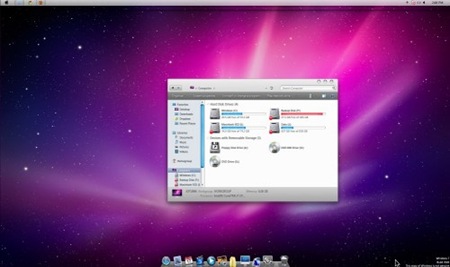
Do you like the Mac but do not have enough money to buy one ? Would you like the look of Windows 7 or be very similar to Snow Leopard, the Mac operating system ? Then you just have to download and install Snow Transformation Pack for your operating system look like the image that opens this post . Download Snow Transformation Pack - Via Lifehacker

snow-transformation-pack

Read more...

Direct access through the Windows 7 Shell : Command List

The Shell of Windows 7 allows us to execute commands quickly. We can open windows, open programs, run routines, users open folders.

To run the command Windows 7 Shell then press the start menu and write in search box Shell: following the command you want to use.

Command List: Windows 7 Shell

shell : Profile
Open the user profile folder .

shell : Personal
Open the Documents folder.

shell: SendTo
Open the Mail folder to modify the list of programs that appear when you click the right button of a file and choose Send To

shell : Public
Open the collection of shared folders of your computer .

shell : Common Startup and shell : Startup
Lets work with the folder that contains the programs that load at startup .

shell: ConnectionsFolder
Access to Network Connections.

shell: Programs and shell : Common Programs
Open the Programs folder.

shell: AppData and shell : Local AppData
Access the data folders of programs you have installed.

shell : Cookies and shell : cache
Allows access to the folders containing cookies and cache files Internet Explorer

shell : Profile
user profile folder

shell: UsersFilesFolder
Like shell : profile

shell : Personal
Folder Documents

shell: MyMusic
Open the My Music folder

shell : My Pictures
My Pictures folder

shell : My Video
Open the My Videos

shell : Contacts
Contacts folder

shell : Desktop
Open Desktop

shell : Downloads
Download Folder

shell : Favorites
Access to the Favorites folder of Internet Explorer

shell: Searches
Open the folder search

shell : Links
Folder Internet Explorer bookmarks

shell : Public
User public profile

shell : Common Documents
Public Documents

shell: CommonDownloads
Download Public Folder

shell: CommonMusic
Open the Public music folder

shell: CommonPictures
public image folder

shell: CommonVideo
Public Folder Videos

shell: SampleMusic
Sample Music folder

shell: SamplePictures
Sample Pictures folder

shell: SampleVideos
Portfolio sample videos

shell: Start Menu
Access to the Start menu

shell : Startup
Folder with the programs that load at startup

shell : Programs
Open the folder containing the Programs menu

shell : Quick Launch
Quick Home Folder

shell: Recent
Open the folder of recently opened files

shell: SendTo
Open the Programs folder of the Send To menu

shell : User Pinned
Allows access to the pinned items list in the taskbar and start menu

shell: ImplicitAppShortcuts
Access to the pinned items to the Start menu by default.

shell: GameTasks
Games Explorer

shell : Administrative Tools
Administrative Tools

shell : Ringtones
Folder Call Editor Windows 7.

shell : Templates
User Templates folder .

shell : Gadgets
Gadgets preinstalled on the system.

shell : Playlists
Playlists

shell: PrintHood
Access to user-created printers .

shell : CD Burning
Temporary folder on the disc burning program

shell : Cache
Temporary Files Internet Explorer 8

shell : Cookies
Folder with cookies Internet Explorer 8.

shell : History
History of visited pages.

shell: SystemCertificates
Copies of digital certificates used by Internet Explorer. You must use the editor to modify certificates .

shell: CryptoKeys
A folder that stores the encrypted key .

shell: dpapiKeys
Folder that contains the keys for encryption tools of the system.

shell: CredentialManager
Folder credentials.

shell: MyComputerFolder
Folder Team

shell: RecycleBinFolder
Open the Recycle Bin.

shell : Fonts
Sources folder .

shell: Games
Open the Games folder.

shell : Libraries
Open the Libraries node in the browser

shell: UsersLibrariesFolder
Same as above .

shell: DocumentsLibrary
Open the Documents library .

shell: MusicLibrary
Music Library Opens

shell: PicturesLibrary
Open the picture library .

shell: VideosLibrary
Videos library opens .

Shell: HomeGroupFolder
Access to the folder that contains the group home .

shell: NetworkPlacesFolder
Open the network folder .

shell: NetHood
Access to the network shortcuts created by the user.

shell: ConnectionsFolder
Open Network Connections .

shell: PrintersFolder
Access to printers and faxes.

shell: AppUpdatesFolder
List of installed updates.

shell: CSCFolder
Access files off -line.

shell: SearchHomeFolder
Open the folder search results with focus on the search box .

shell: ControlPanelFolder
Open the Control Panel .

shell: AddNewProgramsFolder
Allows access to the installation of software from the network.

shell: ChangeRemoveProgramsFolder
Add or Remove Programs.

shell: SyncCenterFolder
Sync Center.

shell: SyncSetupFolder
Sync Settings

shell: SyncResultsFolder
Results of Sync Center

shell: ConflictFolder
Conflicts sicnronización .

shell: InternetFolder
Open Internet Explorer 32 bits.

shell : Windows
Open the folder where you installed Windows 7.

shell : System
Access to the Windows \ System 32

shell: SystemX86
In Windows 64-bit open the Windows \ SysWOW64

shell: UserProfile
Open the folder with the profiles of users each.

shell: ProgramFiles
Access to the Programs folder .

shell: ProgramFilesX86
In 64-bit systems open the folder that contains the 32-bit programs .

shell: ProgramFilesX64
In 64-bit systems opens folders with 64-bit programs .

shell: ProgramFilesCommon
Open the Program Files folder common.

shell: ProgramFilesCommonX86
In 64-bit systems , open the Program Files (x86 ) \ Common Files folder

shell: ProgramFilesCommonX64
In 64-bit systems opens the folder Program Files \ Common Files

shell: AppData
Open the folder for the program data usuarion active.

shell : Local AppData
Open the local data folder to the user program active.

shell: LocalAppDataLow
Open the local data folder to the user program in active low level of integrity.

shell : Common AppData
Access to program settings.

shell : Common Start Menu
Common Start menu for all users.

shell : Common Programs
Menu Start Menu programs common to all users.

shell : Common Startup
Folder with the programs that load at startup for all users of the computer .

shell : Default Gadgets
Folder with gadgets that loads Windows by default.

shell: ResourceDir
Resource folder containing the Windows themes , including Aero.

shell: CommonRingtones
Stores ringtones created by Windows.

shell: PublicGameTasks
Browser Shortcuts games.

shell : Common Templates
Common templates for all users .

shell : device Metadata Store
Contains digitally signed files downloaded from Microsoft's servers and personal settings with icons of the items in Device Stage.

Read more...

List Of Windows 7 Tips and Trick

Windows 7 is much better than the latest version of Windows Vista and it comes with a lot of new features. Unfortunately, some of them aren’t so easy to figure out, so I created a list of the most important tips and tricks for windows 7 and a step-by-step guide that will help you apply all of these great windows 7 tips and tricks.

1. PC Safeguard

I rarely let anyone use my PC because I’m afraid he will mess it up, but it seems Microsoft has been thinking at me and came with a solution. The PC Safeguard doesn’t let anyone mess your PC settings, because after the user logs off, the configurations are reset back to normal. Of course it will not restore the configurations changed by you, but only the ones done by other users you define.

To use PC Safeguard, go to Control Panel -> User Accounts and create a new account, then select “Set Up Pc Safeguard” and switch it on. Then you can stay relaxed when others use your computer, because you won’t find anything changed, including configurations, downloaded software, installed programs.


2. Screen Calibration

Fortunately, Windows 7 comes with a display calibration wizard that lets you set up the screen brightness properly, so you won’t have any problems viewing photos or text. The problem was that on one PC a photo could look sharp and bright and on another it looks awful. Now the problem can be fixed by pressing the Windows logo key and then typing “DCCW”.


3. AppLocker

If you are usually sharing your computer with someone else, then you might want to restrict their access to your applications, files or documents. Using the AppLocker tool, you have a few options to do this by blocking other users to access Executables, Windows Installers, Scripts, a specific publisher or path.

You can simply do this by pressing the Windows key then typing Gpedit.msc. Then go to Computer Navigation -> Windows Settings -> Security Settings -> Application Control Policies -> AppLocker. Right click on one of the options (Executables, Installers, or Script) and create a new rule. That should save you from a lot of headaches.


4. Burn Images

We all had trouble with image burning in Windows, because it couldn’t do it itself, a standalone software being needed. With Windows 7 this will not be a problem anymore. All you have to do is double-click the ISO image and burn it on the CD or DVD that’s inserted in the drive.


5. Display Empty Removable Drives

Windows 7 will not show empty drives by default, so if you connect an empty drive to your PC, don’t worry, just go to Tools -> Folder Options -> View and uncheck “Hide empty drives in the computer folder”. This doesn’t seem like a good idea and it should not be default setting, because it will be hard for inexperienced users to figure it out. I bet a lot of users will return their newly bought drive thinking it’s broken.


6. Dock The Current Windows To The Left Side Of The Screen

This new feature seems useful because sometimes it’s disturbing that windows seems to float like crazy on the screen and it’s hard to attach them to one side of it. Now this can easily be done using a keyboard shortcut. Press the Windows key + Left key (arrow) to dock it to the left side of the screen.
6.1 Dock The Current Windows To The Right Side Of The Screen
Press the Windows key + Right key to dock it to the right side of the screen.


7. Display Or Hide The Explorer Preview Panel

Press ALT + P to hide it then once again to display it.
8. Display Gadgets On Top Of Other Windows
Press ALT + G


9. Background Photo Slideshow

If you are like me, lazy and bored, then you will want to change the background from time to time, wasting a lot of time. Now you don’t have to do this anymore, because you can set up a slideshow.

Right click on the desktop then go to Personalize -> Desktop Background and hold the CTRL key while choosing the images. Then you can choose the time intervals between images and opt to display them randomly or in a row.


10. Make The Taskbar Smaller

If you feel like the taskbar is using too much of your screen space, you can choose to make the icons smaller. To do this, right-click on the Start button, then go to Properties -> Taskbar and set it to “Use small icons


11. Combine Taskbar Icons

When you have more windows or applications opened, the taskbar’s space might not be enough for them all, so you need to combine them, just like you would in Windows XP or Vista. To do this, right-click the Start button, then go to Properties -> Taskbar and check “Combine when taskbar is full”.


12. Multi-threaded File Copy

If you are a more advanced user, you’ve heard already about Robocopy. Now it’s included in Windows 7 and lets you perform multi-threaded copies from the command line. You can choose the number of threads like this “/MT[:n], which can be from 1 to 128.


13. Maximize Or Restore The Foreground Window

Press Windows Key + Up Key.

14. Minimize The Active Window

Press Windows Key + Down Key


15. Activate The Quick Launch Toolbar

The Quick Launch Toolbar in Windows XP and in Vista seems a very good idea that you might miss when using Windows 7. Fortunately though, you can get it back in a quick few steps.

Right click the taskbar, go to Toolbar -> New Toolbar and type “%UserProfile%\AppData\Roaming\Microsoft\Internet Explorer\Quick Launch” into the folder box, then click Select Folder.
To make it look like it would in Windows Vista, right click the taskbar, uncheck “Lock the Taskbar”, then right click the divider and uncheck “Show Title” and “Show Text”. Then right click the taskbar and check “Show Small Icons” and you should be done.


16. Preview Photos In Windows Explorer

While in Windows Explorer, Press ALT + P and a preview should appear on the right.


17. Desktop Magnifier

Press the Windows Key and the Plus Key to zoom in or Windows Key and the Minus Key to zoom out. You can zoom anywhere on the desktop and you can even configure your magnifier. You can choose to invert colors, follow the mouse pointer, follow the keyboard focus, or the text insertion point.
18. Minimize Everything Except The Current Window
Press the Windows Key + Home Key.


19. TroubleShoot Power Management

Windows 7 can tell you how much power your system uses or provide detailed information about the power usage and issues caused by each application and device. This way you can optimize the way your battery is used, making It last longer.
Press the Windows Key and type “POWERCFG –ENERGY –OUTPUT ”, and it will create a file called energy-report.html in the folder specified by you, after observing your PC for 60 seconds.</PATH\FILENAME>


20. Web Searches From Your Desktop

Windows 7 lets you search for online resources, by adding a connector that be downloaded for free.
For instance, go to http://www.istartedsomething.com/flickrsearch/ and download the Flickr connector. After that, you should see the Flickr Search in your searches folder and you will be able to do it directly from your desktop, without needing to visit their website.


21. Add Videos To Your Start Menu

If you were looking for a faster way to access your videos, then Windows 7 has the right answer for you.
Right click the Start button, then go to Properties -> Start Menu -> Customize and set the Videos to “Display as a link” and you’re done, you will now find them in the Start Menu.


22. Shift The Window From One Monitor To Another

If you are using two or more monitors, then you might want to move the Windows from one to another. There is a very simple way to do it.
All you have to do is press the Windows Key + Shift Key + Left or Right Key, depending on what monitor you want to move it to.


23. Custom Power Button

There is an option to replace the “Shut Down” button with another action, if you rarely shut down the computer, but you more often restart it or put it on sleep.
Right click the Start Button, go to Properties and choose the ‘Power Boot Action” to do whatever you want, from the given options.


24. Easily Add A New Font

Adding a new font it’s now easier than ever. Just download the font you want, double click it and you should see the install button.


25. Stretch The Window Vertically

You can stretch the active window vertically to the maximum display height by pressing the Windows + Shift + Up (arrow) keys. Press Windows + Down Keys if you want to restore it.


26. Open Windows Explorer

Press the Windows logo key + E to open a new instance of Windows Explorer.


27. Create A New Instance Of The First Icon In The Taskbar

Press Windows + 1 Keys to open a new instance of the first icon in the taskbar. This could prove really useful in some circumstances.


28. Windows Action Center

Windows Action Center offers you important information about your PC, like the Antivirus Status, updates, troubleshooting and provides a backup scheduling feature.
To access it, go to Control Panel -> System And Security -> Action Center.


29. Windows Troubleshooting Platform

This platform can help you solve a lot of issues you may encounter, like the internet connection, hardware devices, poor system performance and more. You can choose what to troubleshoot and it will come with some possible explanations for the problem that might really help you.
There are a lot of options, guidance and information available there, so give it a try by typing “troubleshoot” or “fix” after pressing the Windows Key.


30. Turn Off System Notifications

System notifications are usually disturbing and aren’t always useful, so you might want to turn some of them off and.
This can be done in Windows 7 by double clicking the Notification Area Icons in Control panel. There you can change notifications and icons for the Action Center, Network, Volume, Windows Explorer, Media Center Tray Applet, Windows Update Automatic Updates.


31. Turn Off Security Messages

To turn off security messages you have to go to Control Panel -> System and Security -> Action Center -> Change Action Center Settings and you can turn off the following notifications: Windows Update, Internet Security Settings, Network Firewall, Spyware and related protection, User Account Control, Virus Protection, Windows Backup, Windows Troubleshooting, Check for updates.


32. Cycle Through The Open Programs Via The Taskbar’s Peek Menu

This works just like Alt + Tab, but opens the menu just above the sidebar, doesn’t seem very useful. Give it a try by pressing The Windows Key + T.


33. Run A Program As An Administrator

You can easily run a program as an administrator by pressing Ctrl + Shift while opening it.


34. Same Program Windows Switching

If you have more instances of a program running, simply hold Ctrl while clicking on its icon and it will cycle through all the instances.


35. Auto Arrange Desktop Icons

You can now forget about the Right Click -> Auto arrange. All you have to do is hold F5 pressed for a bit and the icons will auto arrange.


36. Encrypt Removable USB Drives

Encrypting an USB drive has never been easier. Now you can right click on the removable drive and then on the “Turn on Bitlocker”.


37. Turn Off Smart Window Arrangement

If you don’t like Windows 7’s new features that arrange your windows intelligently, there’s an easy way to turn it off.
Press the Windows Logo Key, type “regedit”, go to HKEY_CURRENT_USER\Control Panel\Desktop and set WindowArrangementActive to 0. After you reboot your system the smart arrangements will be turned off.


38. Create A System Repair Disc

Windows 7 features a tool that lets you create a bootable System Repair Disc that includes some system tools and the command prompt. To create it, press the Windows Key and type “system repair disc”.


39. Hard-Link Migration Store

The Hard-Link Migration store is only available for new computers and can migrate files, settings, and user accounts. The new Hard-Link Migration Store uses more less disk space and takes less time.


40. Turn Off ‘Send Feedback’

If for some reason, you’re still using the Beta version of Windows 7 and if you feel disturbed by “Send Feedback button”, there is a way to turn it off. Press the Windows Key and type ‘regedit’, then go to HKEY_CURRENT_USER\Control Panel\Desktop and set FeedbackToolEnabled to 0. After you restart the computer, it shouldn’t be there anymore. Also, if you want to turn it on again, set the FeedbackToolEnabled to 3.


41. Improved Calculator

Windows 7 features an improved calculator that can do unit conversion, date calculation, gas mileage, lease, and mortgage. Also you can choose between Standard, Scientific, Programmer, and Statistic calculator.


42. Open A Folder In A New Process

Windows 7 opens all folders in the same process in order to save resources, but this means if one folder crashes, they all crash. So if you feel like that’s a risk you don’t have to take, then you have to open them all in their own processes.
To do this, hold down Shift button, right-click the drive and “Open in New Process”. Now you will be safe.


43. Problem Step Recorder

The Problem Step Recorder is a great tool that can be used in many circumstances. You can turn it on by pressing the Windows Key, then typing “PSR.exe” and click Record. Now it will record all your moves and save them as a HTML document that you can view or write descriptions to it. This can help you with troubleshooting or when writing a guidance or tutorial.


44. Free Codecs Pack

Unfortunately, Windows Media Player still isn’t able to play many audio and video files, so you will still need some codecs. But with the free codecs pack you can download here you shouldn’t have any problems.


45. Start Windows Explorer From My Computer

Windows Explorer opens in the Libraries directory by default. Most of us are used to see the My Computer page instead.
To change it to My Computer, press the Windows Key, then type “explorer”, select Properties and in the Shortcut tab type “%SystemRoot%\explorer.exe /root,::{20D04FE0-3AEA-1069-A2D8-08002B30309D}”. Now you have to right-click the Explorer icon in the Taskbar and hit “Unpin this program from the taskbar” and then drag it back from the Start Menu.


46. Clear The Desktop

If there are too many windows on the desktop, you can clear it by shaking a window from left to right and all others will minimize. To restore the other windows you have to shake the active one again.


47. Use Gadgets With UAC Turned Off

Maybe you noticed that once you turn off UAC you can’t use the gadgets anymore, as a security measure. But if you want to risk using them, there a simple way to do it, even with UAC turned off.

Press the Windows Key, type ‘regedit’, go to HKEY_LOCAL_MACHINE\SOFTWARE\Microsoft\Windows\CurrentVersion\Sidebar\Settings and create a DWORD value named AllowElevatedProcess and set its value to 1. Now you should be able to use your gadgets. If not, then reboot your PC and you should be done.


48. Fix The Media Player & Media Center MP3 Bug

If you have the final version of Windows 7, then go ahead and skip this one, since it applies only to Beta and RC versions.
Both Windows Media Player and Windows Media Center come with a bug that can damage your MP3s by filling missing metadata automatically on imported MP3 files. This can cut a few seconds from the beginning of the tracks and can prove really disturbing. This problem was fixed by Microsoft using the fix that you can download here.


49. Search Everything In Your Computer

Windows 7 offers the possibility to search all file types, including unknown ones and this could help you in some cases.
Though it is not recommended, because it’s much slower than normal search, you can give it a try by doing the following: Launch Windows Explorer, go to Tools -> Folder Options -> View and check “Try to search the content of unknown file types”. If you don’t need it anymore, don’t forget to clear it for an increase in speed.


50. Mouse Gestures

Windows 7 has not only brought gestures for those who use touchscreen devices, but for mouse users too. So, instead of right-clicking a Taskbar icon to access the jump list, you can hold left-click and drag upwards to smoothly call it up. In addition, clicking and dragging down the address bar in Internet Explorer will open the browsing history. There might be more gestures yet not discovered.


51. Configure Your Music Favorites

The Windows Media Center creates a list of favorite songs based on how often you play them, your ratings and date you’ve added them. If you aren’t comfortable with the way they thought it out, change the way it sorts your favorites by going to Tasks -> Settings -> Music -> Favorite Music.


52. Turn Off Recent Search Queries Display

Windows 7 holds and displays the recent search queries by default. This can often prove to be irritating. No need to stress though because it can be disabled.
Press the Windows Key, type “gpedit.msc”, then go to User Configuration -> Administrative Templates -> Windows Components -> Windows Explorer and double click on “Turn off display of recent search entries”.


53. Advanced Disk Defragmentation

Fortunately, Windows 7 offers much better defragmentation than Vista and also lets you configure it a bit from the command line.
To do it, press the Windows Key and then type “CMD”.
You can defragment your hard disk from the command line by typing “defrag” and you have the following options: “/r” will defrag multiple drives simultaneously, “-a” performs a defrag analysis, “-v” prints the report, “-r” treats files with at least 64 Mb of fragments like are not fragmented, “-w” will defrag everything. An example is “defrag C: -v -w” to defrag the whole drive C.


54. How To Make Internet Explorer 8 Load Faster

If you want Internet Explorer 8 to load faster, you need to disable the add-ons that slow it down, so go to Tools -> Manage Add-ons and check the load time for each one. You can choose for yourself the ones you can live without and ones that would increase the load speed.


55. Media Center Automatic Download

Windows Media Center 12 allows you to schedule data downloads, so it can be done without disturbing you. To do it, go to Tasks -> Settings -> General -> Automatic Download Options and you can configure it to start and stop the download whenever you want.


56. Remove The Sidebar

Windows 7 doesn’t seem to feature the sidebar anymore, but it still exists and runs in the background, being launched automatically at startup. So if you want to get rid of it, there are two ways.
The easier one is to press the Windows Key, (or click Start), in the search box, type MSCONFIG.EXE, click the Startup tab and clear the Sidebar box. The hard way is to press the Windows key, type “regedit”, find and delete the registry key at HKEY_CURRENT_USER\Software\Microsoft\Windows\CurrentVersion\Run. This can save you some RAM consumed with no use.


57. Volume Tweaking

Don’t you like that Windows 7 automatically reduces the volume when it detects PC calls? You can turn off this feature by right-clicking the speaker icon in the taskbar, go to Sounds -> Communications and get rid of it.


58. Run A Program As Another User

Windows 7 comes with the possibility to run a program both as an administrator or another user, by right clicking on the executable or shortcut while holding down the Shift key. Then you have to select “Run as another user”.


59. How To Use Virtual Hard Disk Files

You can now create and manage virtual hard disks files in Windows 7 as if they were real disks. This can allow you to use a live Windows installation on the virtual disk without the need to boot the virtual Computer. To create a virtual disk you have to press the Windows Key, right-click on Computer, then go to Manage -> Disk Management -> Action -> Create VHD. There you can specify the location and size of your virtual hard disk file.


To attach the virtual disk file, press the Windows Key, right-click Computer, then go to Manage -> Disk Management -> Action -> Attach VHD and you have to specify the location and if it’s read only or not.

To initialize a virtual hard disk, press the Windows Key, right-click on Computer, go to Manage -> Disk Management -> Action -> Attach VHD, specify the location, click Ok, then right click on the virtual disk and click on Initialize Disk. Select the partition style you want to use and then right-click on the unallocated space and click “New Simple Volume” and follow the instructions wizard. Now, a new hard drive appears in Windows Explorer and you can use it as a real partition.


60. Remove The Windows Live Messenger Tab In The Taskbar

To get rid of the Windows Live Messenger Tab and put it back in the system tray, where it belongs, go to C:\Program Files\Windows Live\Messenger, right-click msnmsdgr.exe and set its compatibility mode to Windows Vista.


61. Lock The Screen

There is no Lock Screen button in the Start Menu anymore, so you have to press the Windows Key + L to lock it, now. It seems easier, in case you don’t forget the shortkey.


62. Create A Screen Lock Shortcut

In case you don’t like shortkeys or you keep forgetting them, there’s another option for screen lock.
Simply create a new shortcut to C:\Windows\System32\rundll32.exe user32.dll, LockWorkStation and place it wherever you want.


63. Enable Run Command In Start Menu

If you miss the old Run Command button in XP, then there’s an option to get it back in Windows 7.
Right-click an open area in Start Menu, go to Properties -> Start Menu -> Customize and check “Run Command”. Now you should be done.


64. Improve Desktop Window Manager For Nvidia Graphics

Sometimes the animations for Desktop Window Manager don’t look very well and aren’t smooth enough and this is cause because Desktop Window Manager renders effects with no transparency and blurring, but you can turn off animations for more pleasant graphics.

Press the Windows Key, right-click on Computer, go to Properties -> Advanced System Settings -> Performance -> Settings and clear “Animate windows when minimizing and maximizing”. Click OK to finnish.

65. Change Default Save Location For Files

Windows 7 is a bit different from Vista, because it saves Documents, Pictures, Videos and Music under the Public folder inside C:\Users. You might not want to save your documents, pictures, videos or music to this location, but create your own locations and you can do it quite easy.

Press the Windows Key, click your username and double-click on the folder you wish to change. Then you will see Includes: 2 library locations. Click on that text, right-click on the folder you wish to set like default and click “Set as default file location”, then click Ok.


66. Make 64bit Windows Media Player Default (only for X64 users)

Windows comes with the 32bit version of Media Player by default. If you are a x64 user, you can keep the system cleaner by only installing one set of codecs.
To do this, press the Windows Key, type “command”, right-click on Command Prompt and hit “Run as administrator”, then type “unregmp2.exe /SwapTo:64?”. After that, press the Windows Key, type “regedit”, go to HKLM\Software\Microsoft\Windows\CurrentVersion\App Paths\wmplayer.exe\, double click on value and change “%ProgramFiles(x86)” to “%ProgramFiles%”. Now you should be using the 64bit Windows Media Player.


67. Open Multiple Instances Of Windows Explorer Via The Taskbar

If you want to run more instances of the Windows Explorer just by hitting the startbar, you can do it by following these steps:
Unpin Windows Explorer from the Taskbar, then press the Windows Key, go to Accessories, right-click Windows Explorer, go to Properties and change the shortcut path to %SystemRoot%\explorer.exe /root,::{20D04FE0-3AEA-1069-A2D8-08002B30309D} ( if you want it to default to My Computer ) or %SystemRoot%\explorer.exe /root,::{031E4825-7B94-4dc3-B131-E946B44C8DD5} ( if you want it to default to Libraries ). Now repin Windows Explorer to your Taskbar and you’re done.
All that is required for opening more instances of it is just a click of the middle mouse button. If you aren’t pleased with what you’ve done, change the shortcut path back to %SystemRoot%\explorer.exe.


68. Make The System Tray Clock Show The AM / PM Symbols

By default Windows 7 does show the time in 24 hour format, so if you want to get the AM / PM symbols, press the Windows Key, type “intl.cpl” to open Regional and Language Options, go to Additional Settings -> Time where Long Time is set to HH:mm and change it to HH:mm tt, for example, where tt is the AM or PM symbol ( 21:12 PM ). To change it to the 12 hour format, you need to type it like this hh::mm tt ( 9:12 PM ).


69. Internet Explorer 8 Compatibility Mode

If your websites don’t render correctly, you might need to enable Internet Explorer 8 display them in compatibility view. This issue is because of the updated rendering engine, which causes a lot of trouble. To do it, open Internet Explorer, go to Tools -> Compatibility View Settings and check “Display all websites in compatibility view”, then click Ok.

That’s it! There you go – 70 very useful tips and tricks for Microsoft Windows 7. Maybe you knew some of these but I’m sure there are some that you did not heard of. They can prove very useful and can save you a lot of time while using Windows 7.
I’m sure you’re asking yourself where’s the tip number 70? Ok, the tip or advice that will help you work faster and more efficiently, with less frustration is…


70. Just Don’t Use Windows Vista

Yes, this is very useful tip and it is strongly recommended. In fact, I should have put this one on the top of the list, so you better apply it… for your own good.
http://www.allpctips.co.cc/2010/04/windows-7-tips-and-tricks-70-hacks.html
Read more...