Showing posts with label Email. Show all posts

Microsoft Outlook add-on for important notifications

Normally, most email clients have reported the arrival of new mail by sending a notice to an alternate account, thanks to a previous configuration. These programs make no distinction between those who are important and which not, which may cause the account to be overrun by spam emails, newsletters and other irrelevant. Solution? Outlook For Important complement Mail Alert.

Thanks to this free add-on is possible to specify exactly when we want to be notified. The program is installed automatically, and users can view an Outlook icon on the main screen itself.

The system allows the use of keywords, which may be searched in the title of the message and its content. This marks the biggest difference with the ground rules in Outlook, which only allow you to configure keywords that are found only in the subject line.

Alerts are displayed on the screen and the tab of the program simultaneously. Simply click on the setup icon to choose which mail accounts will be notified.

One of the advantages which we highlight in this add-on is that it works completely independently, which allows you to view emails that have been moved by Outlook rules. For example, those that have been removed for setting up an alternate email account that removes the server. It is compatible with Microsoft's Exchange Server, which enables reading of messages with one click.

Outlook users who want to be notified when certain issues, contents or senders are listed can download and install Important Mail Alert from the author's site.

It supports Outlook 2003, 2007 and Outlook 2010. Having two versions available for 32-bit or 64-bit. Also required to have installed version 2.0 of Microsoft. Net Framework.

Read more...

Gmail improves learning algorithm Inbox Priority and explains the importance of each email

When some time ago, Google launched Inbox Priority for Gmail, He did state that this feature would be crucial to help those who receive dozens of emails a day to improve their use of email. Yesterday have released a new algorithm with a capacity of higher learning, Which manages to learn our behavior and priorities.

The news is important because Google says that those who have gone off to use Priority Inbox have achieved on average a 15% time spent in front of their inboxes, and 43% reading e truly important. And if we assume that this algorithm is superior, those numbers could soon be improved.

Beyond the algorithm, now Gmail will explain the reasons why a particular post is important. Some people have asked quite strongly and with good reason, as it is to know what a computer can define what is important to us. Now, just posing the mouse pointer over the marker's importance as we see in the picture, we have a notifier which will explain the reasons.

Read more...

How to determine whether to open or read the emails that you send EmailOracle

Some time ago I published a list of tools realize if the recipient opens the email you sent and even receive a notice, well now we will see another tool called EmailOracle which is unique to Gmail and Google Apps also lets you know if the person you sent an e-mail has been opened and it alerts you have spent days (you can specify how many days) without having opened the message.

To use EmailOracle you install an extension in your browser, this extension works in Firefox, Safari and Google Chrome, after installing the extension, go to your account Gmail or Google Apps and you will see a new option in the left column that says: Tracked Emails click there and authorizes EmailOracle to use your Gmail account.

EmailOracle

Now every time you go to compose a new email from your browser with the extension installed you will see 2 options as seen in the picture above where you can choose the number of days to alert you if you have not opened the email, and second, whether the brands will let you know when the recipient opens the email.

EmailOracle allows you to track up to 20 emails a month free, but if you want to track more emails you have to pay a package, you have available with 50, 200 or 10,000 emails a month, and to customize the image EmailOracle inserted at the end of the messages and be able to an invisible must pay for a package.

link

Read more...

Why Gmail does not display a warning when the mail forwarding is activated?

From the Gmail Settings and section Forwarding and POP / IMAP, You can configure the account to automatically forward all mail to another address.

reenvio-gmail
This can be very useful for users who manage multiple accounts the problem is that when setting up a referral does not show any warning on the main page (inbox) and this can be quite dangerous if someone else gains access to the account and configure it.

It may take weeks or even months without change is detected When was the last time to check that option? In addition to reading all the personal emails received, an attacker could access service users and passwords mailed that could even apply Reset password links for confirmation and other things that only the account holder should see.

This is not a new topic, many people have privacy issues with this option in Gmail, and some cases have been quite complicated to involve thefts from other accounts and services.

Checklist Gmail security:
Recently, there is a checklist that looks at 18 critical elements that could compromise the email account, it is worth taking a few minutes to complete (see here).
In one of the recommended just check the automatic forwarding settings, which should not do if the main page will display a warning when the filter first set up or modified:

lista-verificacion-gmail

Hotmail displays a warning:
On the other hand Microsoft webmail displays a warning on the home page announcing that the forwarding is activated, a message is annoying but at least this way if you set a forward without our consent as we notice easily.
reenvio-advertencia
However, if the forwarding address amending the message is the same, but you can only set a direction, it may take several hours or days until the victim noticed that something is wrong.

It is worth mentioning that in order to access your account and modify not necessarily need to know the password, using programs like Firesheep could steal the session without any complications from another computer.

Read more...

Hotmail now has unlimited storage

Now the e-mail service Windows Live Hotmail offers unlimited storage, which undoubtedly makes this service an attractive option compared to its competitors Yahoo Mail and Gmail, all accounts initially have only 5 GB of storage capacity, but once the user requires more space it increase without limit.

Hotmail currently has over 364 million users in 36 languages, but Gmail is still its main rival which has already displaced Yahoo! Mail

Already gone are the days when it was not possible to receive large e-mail messages because they would not fit into our account or had already reached the maximum limit of storage, but despite this huge improvement in Hotmail is not enough reason for me in reuse, because the user experience should improve even more to overcome to Gmail.

Read more...

Android Theme for Google Chrome and Gmail

More and more users are becoming fans of the Android mobile operating system, for that is because you share a Android theme for Google Chrome and Gmail.

Robot Theme is the name that the creator has given this subject, which is clearly inspired in Android, install the theme is very easy, we just have to click on install and once this is installed. One of the main advantages of this issue is that you can install on Windows, Mac and Linux.

And the theme for Gmail Android is just as easy to install, just go to our e-mail settings, go to the themes section and choose Android.

For your convenience, we put direct links for you to be easier to install.

Install: Android Google Chrome Theme
Install: Item Android Gmail

Read more...

Drag & Drop For Gmail Attachments

The most helpful and easy way is drag and drop which we use many times in a day. Instead of copy & paste we prefer drag & drop. And from now you can drag your attachment files directly from your email to drop into desire place you want with your Gmail account in chrome browser.

Let’s start, if you can see the picture above you’ll notice that one pop up message is appearing when I’m putting my mouse cursor over my attachment file sent by one of friend.

Now just you need to put & hold your mouse cursor to select your attachment file (see the picture above) and then simply drag your file from your email to your desire place (desktop) and drop it. You’re done now! http://realtimetricks.blogspot.com/2010/08/drag-drop-for-gmail-attachments.html

Read more...

Cara Cepay Membuat File PDF dengan Gmail

Kali ini saya akan memberikan tips lain tentang cara membuat file PDF gratis. Kali ini kita akan coba memanfaatkan email kita yang ada di Gmail untuk membuat file PDF.

Berikut ini cara membuat file PDF dengan Gmail:

  1. Buat terlebih dahulu sebuah file dengan format *.DOC atau *.DOCX
  2. Kirim email ke email Gmail anda sendiri, jangan lupa sertakan lampiran/attachment file *.DOC atau *.DOCX yang sudah anda buat tadi.
  3. Buka kotak masuk anda
  4. Klik “Tampilan” atau “View”

  5. Klik “Print Page”

  6. Simpan file tersebut.
  7. Selesai. Anda sudah berhasil membuat file PDF dengan memanfaatkan email di Gmail.
Read more...

Cara Membuat Temporary Email

Pastinya jika anda bekerja dengan internet tentu harus membutuhkan alamat E-mail entah itu untuk registrasi atau untuk hal lain misal untuk berkirim E-mail kesesama teman tapi bagaimana jika ada hal lain yang bisa anda lakukan anda dapat membuat E-mail temporary yang bisa anda atur sesuai kegunaan anda dan bisa digunakan sebagai mengirim pesan rahasia.

Jadi anda bisa melakukan setting misal untuk 10 pesan yang diterima dan lamanya waktu misal 7 hari dan tentunya E-mail tersebut adalah E-mail anonim yang akan terhapus otomatis sesuai dengan pengaturan yang telah anda buat, dan bisa anda gunakan tanpa harus melakukanya dengan alamat E-mail asli anda.

membuat email temporary

Caranya silahkan anda kujungi situs berikut http://tempalias.com/ Silahkan isi pada kotak Your Email real yaitu alamat email asli anda dan lakukan setting untuk beberapa hari dan anda juga bisa mengatur untuk pesan yang diterima.

membuat Email temporary

Setelah semua pengaturan yang anda buat silahkan tekan Enter tunggu beberapa detik sebuah jendela baru akan menandakan alamat Email anonim anda ” Free Email temporary ” . netmild.com

Read more...

Impor Google Reader kedalam Thunderbird

Jika anda seringkali bekerja dengan Thunderbird tentunya akan sangat menyenangkan, adna bisa mengatur account e-mail anda dengan baik setiap email masuk atau anda ingin membuat sebuah email anda begitu mudah membukanya tidak perlu repot membuka Browser untuk melakukan itu.

Begitu juga bagi anda yang senang akan Google reader anda bisa melakukanya dengan cara mengimpor Goolge Reader kedalam Thunderbird anda. Secara signkar Google reader adalah sebuah aplikasi yang memungkinkan pengguna untuk mengikuti blog-blog favorit mereka.

Bagaimana caranya login kedalam account Google reader anda kemudian pada halaman Google reader klik Pengaturan atau Settings gulir anda pilih Reader settings.

Mengimpor Google reader kedalam Thunderbird

Pada Jendela Settings pilih menu ” Import/Export “dan klik pada ” Export your Subscriptions as an OPML file”

Mengimpor Google reader kedalam Thunderbird

Silahkan file tersebut anda simpan pada komputer selanjutnya anda buka aplikasi Thunderbird

Mengimpor Google reader kedalam Thunderbird

Pilih menu Tools dan klik pada Account Settings

Mengimpor Google reader kedalam Thunderbird

Pada Account Actions klik gulir pilih Add Other Account pada jendela New account setup pilih ” Blog & News feeds ” dan klik next. silahkan tuutp jendela Account Settings tersebut dan kembali ke dasboard Jendela Thunderbird.

Mengimpor Google reader kedalam Thunderbird

Klik pada ” Blog & News Feeds ” dan klik pada Manage subscriptions akan muncul jendela baru silahkan klik pada Import

Mengimpor Google reader kedalam Thunderbird

dan cari file ” Google-reader- subscriptions.xml ” yang telah anda download tersebut silahkan tuutp jendela Manage subscriptions tersebut dan sekarang Goolge reader feeds muncul pada Thunderbird anda.
netmild.com

Read more...

GMail sebagai Hardisk Online

Sebagaimana telah kita ketahui bahwa Gmail sebagai layanan web base email dari Google saat ini telah menyediakan storage untuk email kita (termasuk attachment) sebesar 7 GB lebih. Ukuran sebesar itu tentu saja lebih dari cukup untuk menyimpan email-email pribadi kita. Untuk memanfaatkan kapasitas penyimpanan dari GMail tersebut kita bisa mnggunakannya sebagai tempat penyimpanan dokument-dokument pribadi kita.

Cara yang sederhana adalah dengan meyimpan file-file data kita kedalam attachment email dan menyimpannya sebagai arsip . Cara tersebut sudah lama saya lakukan sampai tanpa sengaja saya menemukan program GMail Drive.

Dengan GMail Drive kita bisa membuat sebuah Drive Virtual pada folder My Computer dimana kita bisa menyimpan dan mengambil data yang tersimpan pada GMail Account secara drag 'n' drop langsung dari Windows Explorer.

Sayangnya karena pada dasarnya kita mengirim file ke inbox kita, maka proses upload file pun dibatasi seperti halnya kita mengirim email yaitu sebesar 10 MB. Untuk menyimpan file yang lebih besar dari itu kita bisa menyiasatinya dengan memecah file tersebut menjadi beberapa buah dengan ukuran masing-masing file tak lebih lebih 10 MB.

Lebih jelasnya tentang menggunakan GMail sebagai hardisk online ini langsung saja kita ikuti step by step penggunaannya.

  1. Download program GMail Drive di www.viksoe.dk/code/gmail.htm
  2. Ekstrak file dan jalankan setup program.
  3. Setelah selesai akan terbentuk GMail Drive di folder My Computer.
  4. Untuk menggunakan GMail Drive sebagai Online Hardisk terlebih dahulu kita harus login dengan GMail Account kita.

  5. Setelah berhasil login maka kita bisa meng-copy file langsung ke GMail Drive tersebut atau dengan klik kanan pada file dan klik Sent To GMail Drive
  6. Untuk mengecek apakah file-file yang berada dalam GMail Drive telah berada dalam Account GMail kita maka kita bisa login ke GMail dan cek pada inbox, disana akan terlihat beberapa email dengan subjek GMAILFS.
  7. Agar file-file GMAILFS tersebut tidak bercampur dengan email yang lain di inbox kita, terlebih dahulu kita harus memfilter email dan melewatkan email dengan subjek GMAILFS langsung ke archive kita. caranya :
    • Klik Setting - Klik Filter - Klik Create New Filter.
    • Pada jendela Create a Filter pada bagian Subject isi dengan GMAILFS. Klik Next step.
    • Pada pilihan yang tersedia check skip the inbox (archieve it). dan terakhir klik Create a filter.
  8. Sekarang kita telah memiliki Private Hardisk Online berukuran 7 GB untuk menyimpan data-data pribadi kita.
Read more...

Kumpulan Layanan Email Gratis Selain Gmail

Gmail tidak di ragukan lagi merupakan layanan email gratis terbaik di internet, dari segi keamanan dan fitur lengkap untuk aktifitas terima-kirim email, dengan kapasitas besaran penyimpanan yang sangat besar. Selain itu di Gmail ada Google Buzz dan layanan Gmail Chat pula Send A File. Namun begitu tidak ada salahnya, mengetahui juga layanan email berbasis web lainnya.

Dan di artikel ini saya telah kumpulkan 9 layanan email gratis, yang bisa juga di gunakan sebagai alternatif dari Gmail, atau bisa di jadikan pengetahuan mengenai keberadaan layanan-layanan ini. Sebagian dari mereka pastinya sudah anda ketahui, sebagian lain mungkin belum, oke inilah 9 layanan email berbasis web selain Gmail:

  1. Yahoo Mail
  2. Hotmail
  3. GMX
  4. Fastmail
  5. Zoho Mail
  6. LavaBit
  7. BigString
  8. Windows Live Mail
  9. Husmail
Read more...

Membuat Signature E-mail pada Thunderbird

Add Signature email pada Thunderbird
Jika anda belum familiar menggunakan E-mail klien seperti Mozilla Thunderbird mungkin anda akan bertanya tanya bagaimana cara menerapkan atau menambahkan signature pada masing masing Akun E-mail anda secara otomatis.

Berikut cara agar anda dapat mengatur semua signature untuk masing-masing akun E-mail anda, caranya cukup mudah ikuti langkahnya berikut.

Buka Aplikasi Mozilla Thunderbird anda tapi sebelumnya anda harus membuat signature terlebih dahulu bagaimana cara membuat signature dengan format HTML yang berisikan sebuah logo dan URL

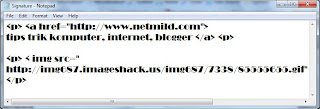
Cara membuat signature langkah pertama buka aplikasi Notepad pada komputer anda kemudian isikan dengan format html seperti ini atau jika anda bisa mengolah HTML anda bisa membuatnya lebih bagus lagi :

Add Signature email pada Thunderbird

Jika sudah anda membuat signature pada notepad silahkan anda save dengan format .html terserah anda memberikan nama yang terpenting formatnya .html.

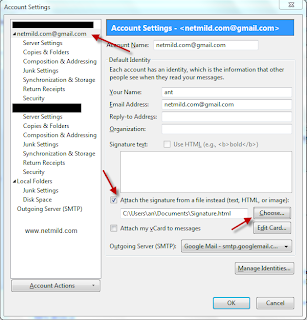
Sekarang kembali ke langkah menambahkan signature pada Thundebird, klik menu Tools pada Thunderbird pilih Account Settings...

Add Signature E-mail pada Thunderbird


Pada jendela Account settings silahkan pilih email anda akum email anda kemudian centang pada Attach the signature from a file instead, dan pilih Chose kemudian cara file .html anda pada yang telah anda buat sebelumnya. dan Klik Ok.

Dengan cara diatas anda bisa melakukan kirim email tanpa harus manual membuat signature terlebih dahulu. Selamat mencoba!!!

Source : netmild

Read more...